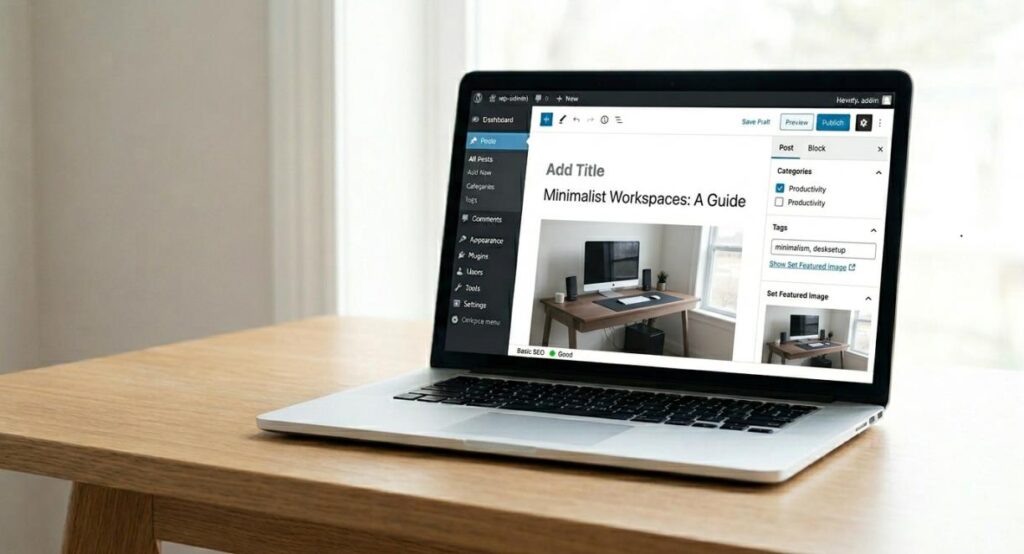
Have you written a blog post but aren’t sure how to publish it properly on WordPress? Many beginners struggle with formatting issues, image uploads, SEO settings, categories, tags, and the final publishing process. As a result, their content may look unprofessional or fail to attract search engine traffic. The good news is that learning how to upload blog on WordPress is much easier than it seems.
Once you understand the correct steps, you can publish well-structured, SEO-friendly posts with confidence. In this complete guide, you’ll learn exactly how to create, optimize, and publish a blog on WordPress, along with practical tips to avoid common mistakes and improve your results.
What Does Uploading a Blog on WordPress Mean?
Before diving into the steps, it’s important to understand what “uploading a blog” actually means. In WordPress, uploading a blog refers to creating a new post, adding content, formatting it properly, optimizing it for search engines, and publishing it so visitors can read it online. When people search for how to upload blog on WordPress, they usually want to know how to:
- Create a new blog post
- Add text and images
- Format content
- Set categories and tags
- Optimize SEO settings
- Publish the article live
Why WordPress Is the Best Platform for Blogging
WordPress powers millions of websites worldwide and remains one of the most trusted content management systems. Some major benefits include:
- Beginner-friendly interface
- Flexible customization options
- SEO-friendly structure
- Thousands of plugins
- Mobile responsiveness
- Easy content management
These features make learning how to upload blog on WordPress worthwhile for bloggers and website owners alike.
What You Need Before Uploading a Blog Post
Preparation can save a lot of time during publishing.
A Finished Article
Ensure your content is complete before opening WordPress. Your article should include:
- Clear introduction
- Organized headings
- Useful information
- Proper conclusion
Images and Media
Prepare all images beforehand. Recommended image optimization:
- Compress image sizes
- Use descriptive filenames
- Add alt text
- Choose high-quality visuals
SEO Elements
Before publishing, prepare:
- Focus keyword
- Meta title
- Meta description
- Internal links
- External references
This preparation helps streamline how to upload blog on WordPress effectively.
Step-by-Step Guide: How to Upload Blog on WordPress

Let’s walk through the entire process.
Step 1: Log Into Your WordPress Dashboard
Visit: yourdomain.com/wp-admin. Enter your username and password. After logging in, you’ll arrive at the WordPress Dashboard.
This is the control center where you’ll manage content, settings, plugins, and more.
Step 2: Go to Posts and Add New
On the left-hand menu: Posts → Add New . Clicking this option opens the WordPress editor. This is where you’ll create your new blog post. Anyone learning how to upload blog on WordPress should become familiar with this section first.
Step 3: Enter Your Blog Title
At the top of the editor, you’ll find the title field. Your title should:
- Include the target keyword
- Be descriptive
- Encourage clicks
- Stay under 60 characters if possible
Example: How to Upload Blog on WordPress: Complete Beginner Guide A strong title improves both user engagement and SEO performance.
Step 4: Add Your Blog Content
Paste your article into the editor. WordPress uses the Gutenberg Block Editor by default. Each content element becomes a block:
- Paragraphs
- Images
- Headings
- Lists
- Videos
- Buttons
This structure makes formatting easier and improves readability. Learning how to upload blog on WordPress becomes much simpler once you’re comfortable using blocks.
Step 5: Format Your Content Properly
Formatting improves user experience. Use:
- H2 headings for major sections
- H3 headings for subsections
- Bullet points for lists
- Short paragraphs
- Bold text where appropriate
Good formatting keeps readers engaged longer.
Step 6: Upload Images
Images make blog posts more appealing and easier to understand. To upload an image:
- Click the “+” icon
- Select Image block
- Upload your image
- Insert it into your content
Always add:
- Alt text
- Captions when needed
- Descriptive filenames
This helps improve image SEO.
Step 7: Add Categories and Tags
Categories organize your website content. For example:
Category:
- WordPress Tutorials
Tags:
- WordPress
- Blogging
- SEO
Proper categorization helps visitors navigate your site more easily.
Step 8: Set a Featured Image
A featured image acts as the visual representation of your blog post. Benefits include:
- Better social sharing appearance
- Improved click-through rates
- More professional design
Select a high-quality image relevant to your topic.
Step 9: Optimize SEO Settings
This step is essential when learning how to upload blog on WordPress professionally. Most websites use SEO plugins such as:
- Yoast SEO
- Rank Math
- All in One SEO
Configure:
- SEO title
- Meta description
- Focus keyword
- URL slug
Example URL:
yourdomain.com/how-to-upload-blog-on-wordpress
SEO optimization improves visibility in search engines.
Read More: UploadArticle.com Authors: Complete Guide to Contributors
Professional Publishing Checklist
| Task | Importance |
| Add SEO title | High |
| Write meta description | High |
| Optimize images | High |
| Add internal links | High |
| Check mobile view | Medium |
| Add categories | Medium |
| Set featured image | High |
| Preview content | High |
| Publish article | High |
Step 10: Preview Your Blog Post
Before publishing, click Preview. Check:
- Spelling
- Formatting
- Images
- Links
- Mobile responsiveness
Previewing helps catch mistakes before they become visible to visitors.
Step 11: Publish the Blog
Once everything looks good: Click Publish, Then confirm publication. Congratulations! You have successfully learned how to upload blog on WordPress and make it live for readers.
SEO Best Practices for WordPress Blog Posts
Publishing isn’t enough. You must also optimize content for search engines.
Use Keywords Naturally
Your focus keyword should appear naturally throughout the article. Avoid excessive repetition. Search engines prefer helpful content over keyword stuffing.
Optimize URLs
Keep URLs:
- Short
- Descriptive
- Keyword-focused
Example:
/how-to-upload-blog-on-wordpress/
Write Strong Meta Descriptions
A compelling meta description improves click-through rates. Include:
- Focus keyword
- Clear value proposition
- Action-oriented language
Add Internal Links
Link to related content on your website. Benefits include:
- Better SEO
- Improved navigation
- Increased page views
Add External Links
Linking to authoritative sources can increase trustworthiness and improve user experience.
Common Problems When Uploading Blog Posts
Even experienced users occasionally encounter issues.
Images Not Uploading
Possible causes:
- File size too large
- Unsupported format
- Hosting restrictions
Solution: Compress images before uploading.
Formatting Breaks After Publishing
Sometimes content appears different after publication. Check:
- Theme compatibility
- Block settings
- Mobile view
Blog Post Not Appearing
Possible reasons:
- Draft status
- Incorrect publication date
- Cache issues
Clear cache and verify publication settings.
Permission Errors
User role restrictions may prevent publishing. Ensure you have:
- Administrator access
- Editor permissions
Advanced WordPress Publishing Tips
After mastering the basics of how to upload blog on WordPress, you can improve efficiency using advanced features. Schedule Blog Posts
WordPress allows future publishing. Benefits include:
- Consistent posting
- Better content planning
- Automated publishing
Use Reusable Blocks
Save frequently used content blocks such as:
- Author bios
- Call-to-actions
- Contact sections
This saves time on future articles.
Add a Table of Contents
Benefits:
- Better navigation
- Improved user experience
- Increased chances of earning featured snippets
Monitor Performance
Track metrics using:
- Google Analytics
- Google Search Console
Analyze:
- Traffic
- Rankings
- Click-through rates
Data helps improve future content.
How to Update Existing Blog Posts
Publishing is not the end of the process. Updating content helps maintain rankings.
Edit Existing Posts
Go to: Posts → All Posts, Select the post and click Edit.
Refresh Outdated Information
Update:
- Statistics
- Screenshots
- Links
- Examples
Fresh content often performs better in search results.
Republish Updated Content: After editing, click Update. This saves your changes instantly.
Benefits of Uploading Blog Posts Correctly
Understanding how to upload blog on WordPress properly offers several advantages.
Improved Search Rankings: SEO optimization increases visibility in search engines.
Better User Experience: Readers can navigate content more easily.
Increased Organic Traffic: Higher rankings often lead to more visitors.
Higher Engagement: Well-formatted posts encourage readers to spend more time on your website.
Conclusion
Learning how to upload blog on WordPress is one of the most important skills for any blogger, website owner, or digital marketer. Fortunately, WordPress makes the process straightforward, even for complete beginners. By following the steps outlined in this guide, you can confidently create, format, optimize, and publish professional blog posts that provide value to readers and perform well in search engines.
Remember to focus on quality content, proper formatting, image optimization, and SEO best practices every time you publish. The more consistently you apply these techniques, the easier the publishing process becomes and the better your long-term results will be.
FAQs
Q1: How do I upload a blog post to WordPress?
Ans: Log into your WordPress dashboard, go to Posts → Add New, add your content, upload images, optimize SEO settings, and click Publish.
Q2: Is WordPress good for beginners?
Ans: Yes. WordPress is beginner-friendly and offers a simple interface for creating and publishing content.
Q3: Can I upload a blog without plugins?
Ans: Yes. WordPress allows publishing without plugins, although SEO plugins can improve optimization.
Q4: What is the difference between a post and a page?
Ans: Posts are used for blog content and appear chronologically, while pages are typically used for static content such as About or Contact pages.
Q5: How do I add images to a WordPress blog?
Ans: Use the Image Block within the Gutenberg editor to upload and insert images into your post.
Q6: Can I schedule blog posts in WordPress?
Ans: Yes. WordPress allows you to choose a future date and time for automatic publishing.
Q7: Which SEO plugin is best for WordPress?
Ans: Popular options include Yoast SEO, Rank Math, and All in One SEO.
Q8: Why is my blog not visible after publishing?
Ans: Check publication status, caching issues, search engine visibility settings, and user permissions.
Q9: How often should I publish blog posts?
Ans: Consistency matters more than frequency. Most websites benefit from publishing high-quality content regularly.